

The Admin Panel
Content is edited on the live page: the admin bar overlays the front end, and the manager panel slides up from the bottom when you click a component. A few admin pages under /_cwa manage records that aren't on a page, such as layouts, routes and users.
This page is a tour for editors and developers new to CWA.
Access
Log in at /login with ROLE_ADMIN credentials. Once logged in, the admin bar appears at the top of every page.
The Admin Bar
The bar shows:
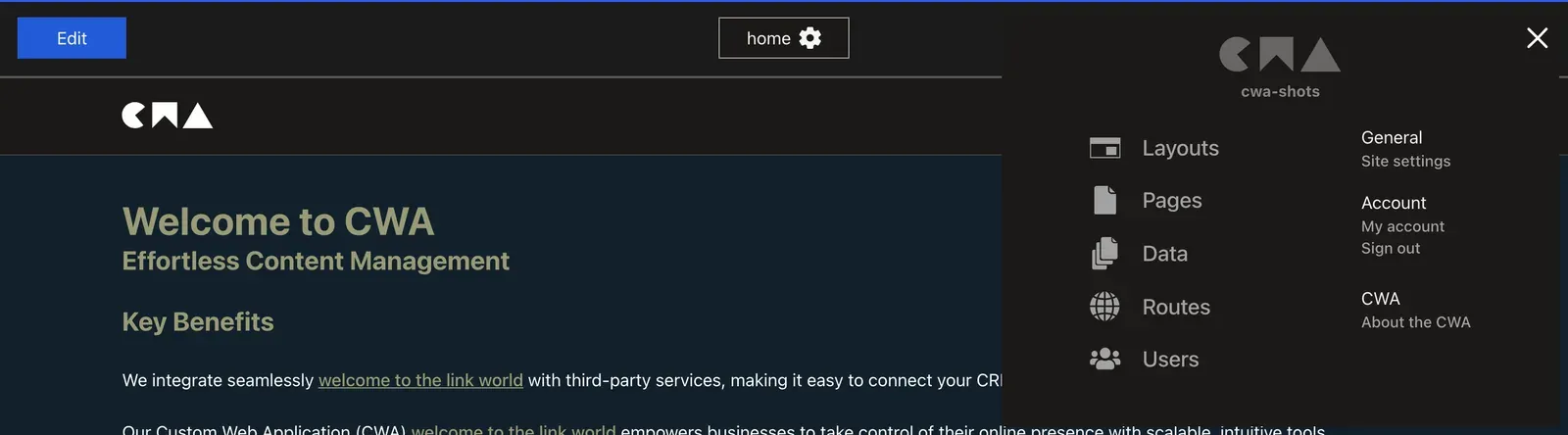
- Edit / Done toggle — activates inline editing mode
- A menu linking to the admin pages: Layouts, Pages, Data, Routes, Users and Settings
- The current page's name with a cog — click it to open that page's settings
- A loading indicator for API activity
- A warning icon with a count beside Edit / Done when the page has component groups that your code no longer shows (see Stranded Component Groups)
Edit Mode
When edit mode is active:
- An empty ComponentGroup shows a dashed placeholder with a single + hotspot — click it to open the "Add Component" dialog
- Click any component to select it and open the manager panel
- The manager panel slides up from the bottom and shows your component's admin tabs
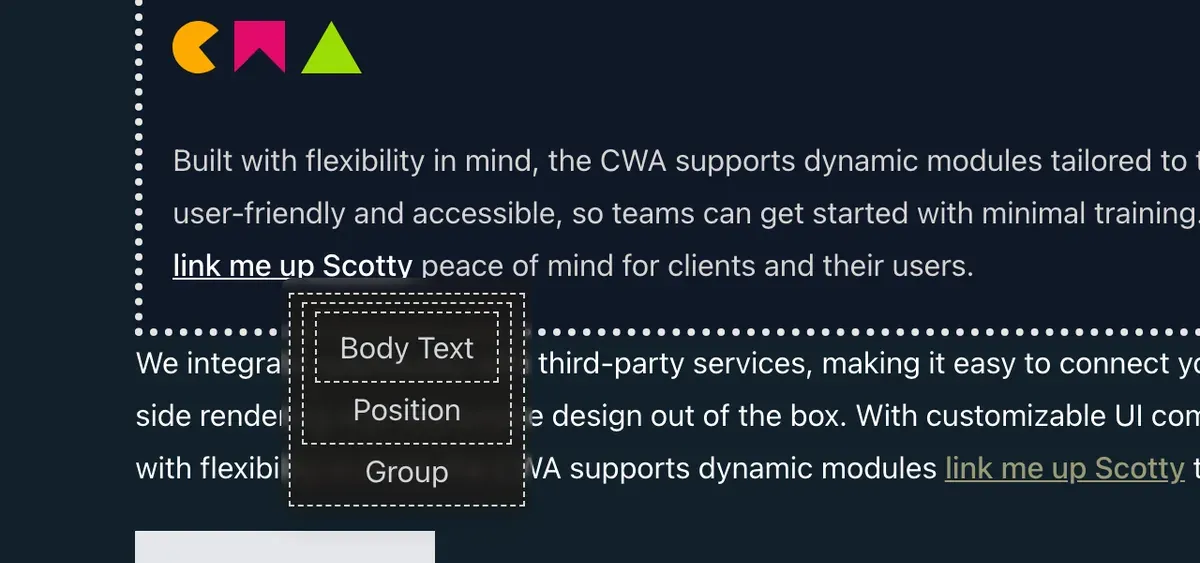
- Right-click a component in the live page layout (not in the
/_cwa/admin pages) to open a context menu listing the nested resources under the cursor — use it to select the parent component position or group instead of the innermost component - Clicking a link to another page does nothing, so an edit in progress isn't lost. Click Done first. The browser's back and forward buttons still work. See Navigation Guard
Adding a Component
- Enter edit mode
- In an empty group, click its + hotspot. In a group that already has content, click a component to select it, then use the manager panel's CTA button — Add Before / Add After (or Add to Start / Add to End when the ComponentGroup itself is selected). A group that is full offers no add; see Limiting the Number of Components
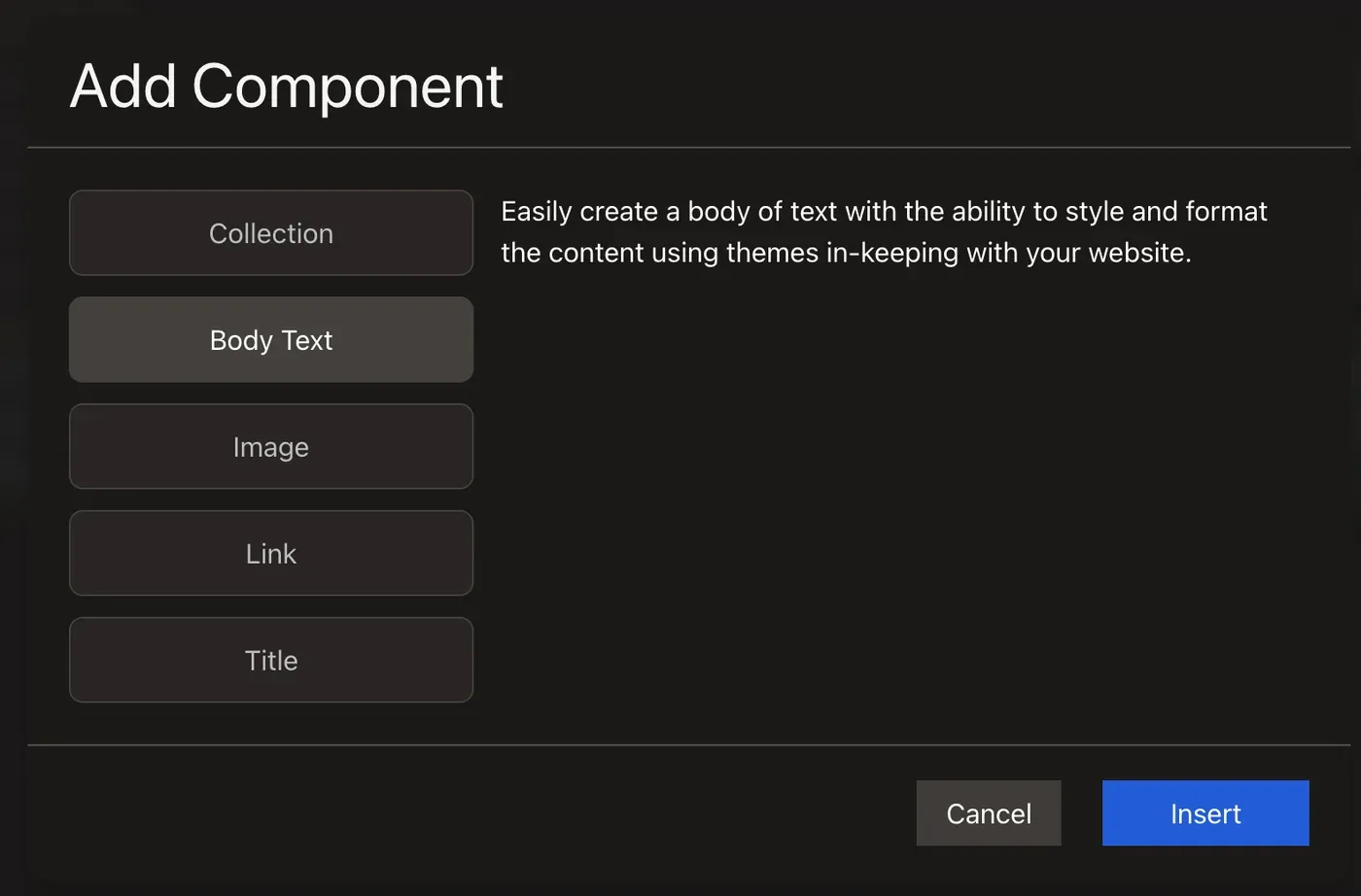
- The "Add Component" dialog lists available component types
- Select one — if
instantAdd: trueis set innuxt.config, it's added immediately; otherwise a config panel appears first - The new component is added to the group
Reordering
Select a component and open the manager panel's Order tab. Turn on Enable reordering, then use Move Up / Move Down or type a position number. The component moves at once, and you can keep moving it while the change saves.
The module sends the group's new order to the API in one request, and the API chooses each position's sortValue. Moves made while a request is running are sent together in the next one. When the response comes back, the module updates the group from it, so a component another editor added in the meantime appears in its place.
Cloning a Component
A clone puts the same component in another place. It isn't a copy: both places show one component with one IRI, so an edit or a publish in either place changes it everywhere. Use it for something that should stay identical in several places, such as a call to action shown on several pages. To take a component out of one place and put it in another, use Move instead (see Moving a Component).
- In edit mode, select the component. Beside the manager panel's publish button, open More actions (the ⋮ button, whose menu also has Add Before / Add After) and choose Clone. It's offered for any saved component, even when its own group is full.
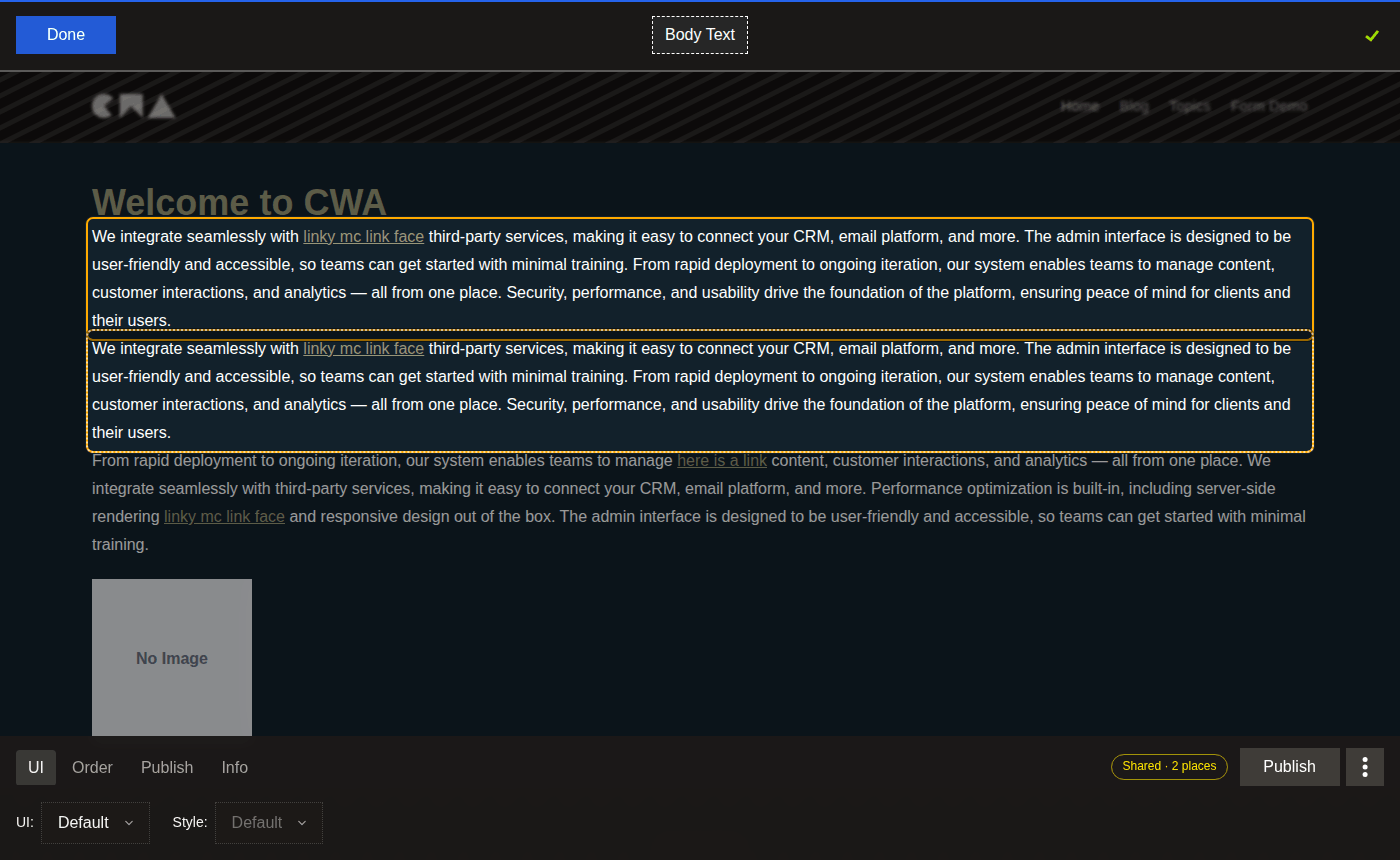
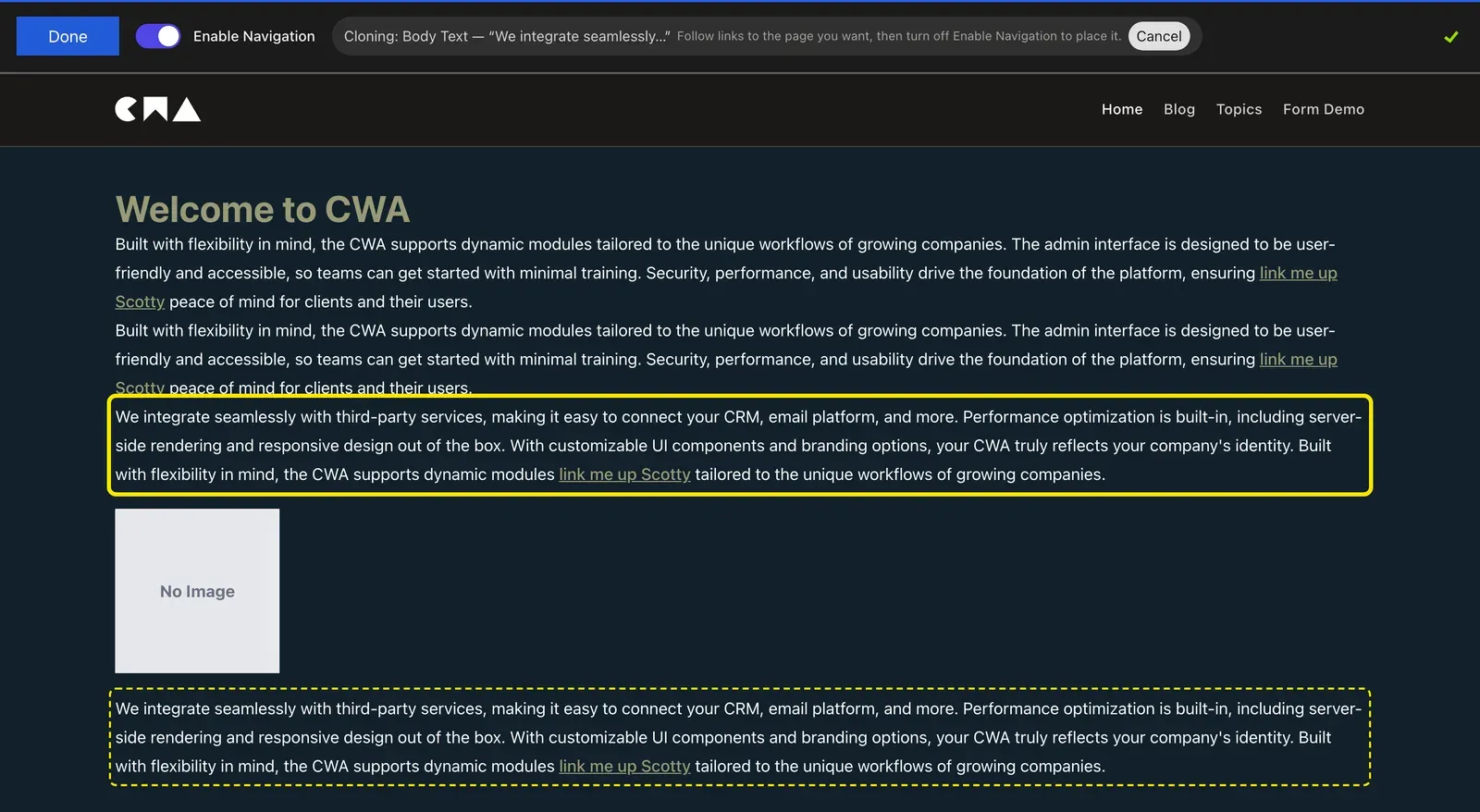
- Clone mode starts. A bar under the admin bar reads Cloning: name — “text”, where the text is the start of the component's content, and has a Cancel button. The instance you started from gets a solid yellow outline, and every other instance of the component on screen a dashed one.
- Click where it should go. The spot gets a blue dashed outline, and a menu opens at the click point with the options adding a component offers there (see The placement menu below).
- Choose an option. If the spot is in the layout while you were editing the page, or the other way round, you're asked Edit the shared layout? (It will appear on every page that uses this layout.) with Edit layout and Cancel, or Edit the page? (It will appear on this page only, not on other pages using the layout.) with Edit page and Cancel.
- Clone mode ends, and the new instance flashes and is selected.
Clone mode starts with Enable Navigation on. The toggle is in the admin bar, shown only in clone mode while editing. While it's on, the bar's hint reads Follow links to the page you want, then turn off Enable Navigation to place it. Links work, a route that redirects takes you to its target, and a click on a component neither selects it nor opens the menu. When another page arrives, Enable Navigation turns itself off, and the hint becomes Click a component to place it before or after. To use another page, turn on Enable Navigation. To place the component on the page you started from, turn Enable Navigation off yourself. Clone mode stays on across navigation.
Clone mode ends when you click Cancel, press Escape, click Done, sign out, or place the component. Escape or a click outside an open menu closes only the menu, and clone mode stays on. A right-click opens the browser's own menu.
When the selected component is the draft of a published component, the clone places the published component, which the draft belongs to.
The placement menu
The menu is headed after the component you clicked next to: Clone next to “text”, from the start of that component's content, or its name when it has no text. When you clicked a group rather than a component, it's titled Clone Here.
The options depend on what you clicked:
| You clicked | Options |
|---|---|
| A component in a group | Add before, Add after |
| A group that has components | Add to Start, Add to End |
| An empty group | Add here |
| A component position bound to a page data property, on a page data page (see Your First Dynamic Page) | Use here, which sets the page data's property to the component. It's offered beside the group options when the click also reached a group |
An option that isn't allowed is greyed out, with a ? beside it: click it to see why. When no option is allowed, the menu has one greyed-out row, Nothing can be placed here, whose ? lists every reason. The reasons are:
- This group is full: the group has reached its maximum, see
<CwaComponentGroup />› Limiting the Number of Components. - This group does not allow Type: the group's allowed components don't include it, see
<CwaComponentGroup />› Allowed Components. - This component type is not known: the API's documentation doesn't list the component's type.
- This field takes Type, not Type: the page data property holds a different component type.
- This is inside the component being cloned: see the callout below.
Component types are named by their display name.
When no reason applies but nothing can be placed, the ? says A component cannot be added here.
Under the heading, one muted line says where the component will show. A spot in the layout, while you're editing the layout, says Shared layout: this appears on every page. A spot in the other scope says This is in the layout: it will appear on every page using it, or This is in the page: it will not appear on other pages using the layout. When the page data property already holds another component, the line also says This replaces Type.
If the API refuses the clone (a 422), the error is shown and clone mode stays on, so you can pick another target. If the component has been deleted in the meantime, the error reads The component being cloned no longer exists and clone mode ends. The same happens when the API answers 400 Item not found, as it does for a deleted component.
422 on component (see Component Groups & Positions › A Component Can't Contain Itself).Moving a Component
Move takes the instance you selected out of its place and puts it somewhere else. The component itself doesn't change, and any other place that shows it keeps showing it. Clone adds a place; Move changes one.
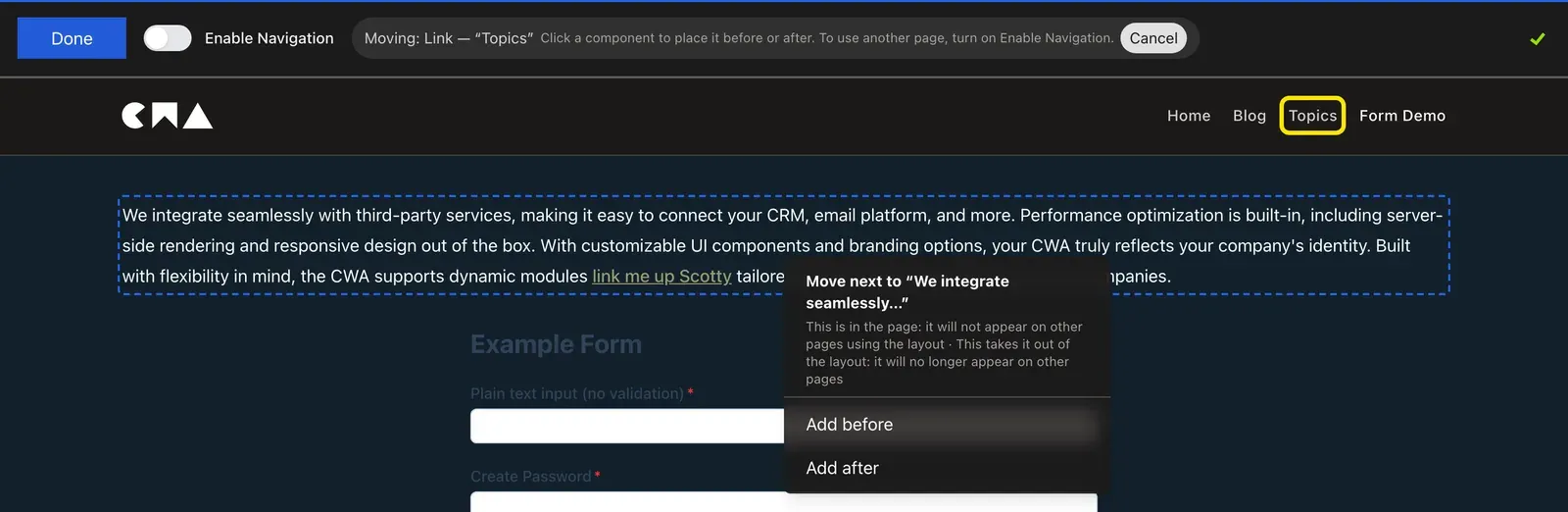
2.0.0-alpha.32 or later. A move is one POST {component}/move request, which the API applies in one transaction, see Component Groups & Positions › Moving a Component. Update the module and the bundle together: see Module Setup › Bundle versions.Moving works like cloning, with the same mode, bar, placement menu and Enable Navigation toggle:
- Select the component, open More actions and choose Move. It's offered for a saved component in a component position, and for a component that a page data property holds.
- The bar reads Moving: name — “text”.
- Click where it should go. The menu is headed Move next to “text” or Move Here, with the same options as for a clone.
- Choose an option. The component leaves its old place, appears in the new one, flashes and is selected.
A move can go into an empty page data property, out of one into a group, and into the same property on another page data page: turn on Enable Navigation to get there. The menu differs from a clone's in these ways:
- This is where it already is: the option would leave the component where it is, such as Add before or Add after on the instance you're moving, or Use here on the property that holds it.
- This field already holds Type: a move cannot replace it: Use here is disabled on a page data property that holds another component. Clear it first, or clone instead.
- A full group isn't a reason when the component is moving within that group.
- Moving a component out of the layout into a page says This takes it out of the layout: it will no longer appear on other pages.
If the component has been deleted in the meantime, the error reads The component being moved no longer exists and move mode ends.
Shared Components
A component in more than one place is shared. Selecting it outlines every instance on screen: the one you clicked as usual, and each other one with a faint dotted outline. Editing in one place updates them all.
Beside the manager panel's publish button, a badge reads Shared · N places. Click it for the list of places:
- Layout: reference on every page using it, for a component in a layout's group.
- Each page it shows on, by title or path, and linked when it has a route. The page on screen is marked This page. A page that shows it as the default for a page data property is under Template default for property.
- and N more when a place shows on more pages than the list has room for, and and N more places when there are more places than it lists.
The links work while you're editing, without turning on Enable Navigation.
The manager panel's Info tab says Used in N locations too, see Deleting a component.
2.0.0-alpha.32 or later, which lists them in GET {component}/usage (see Component Groups & Positions › Where a Component Is Used).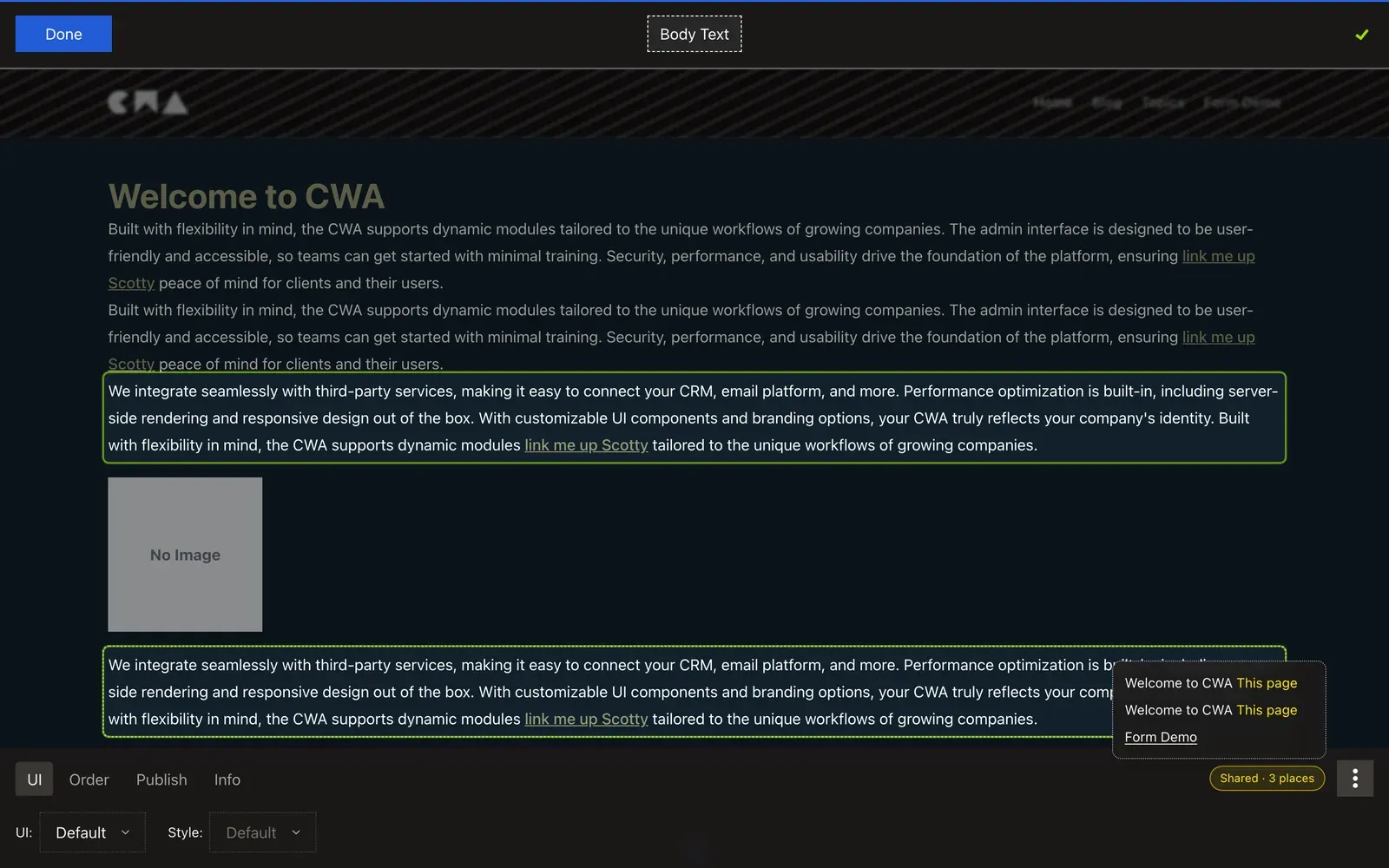
The Manager Panel
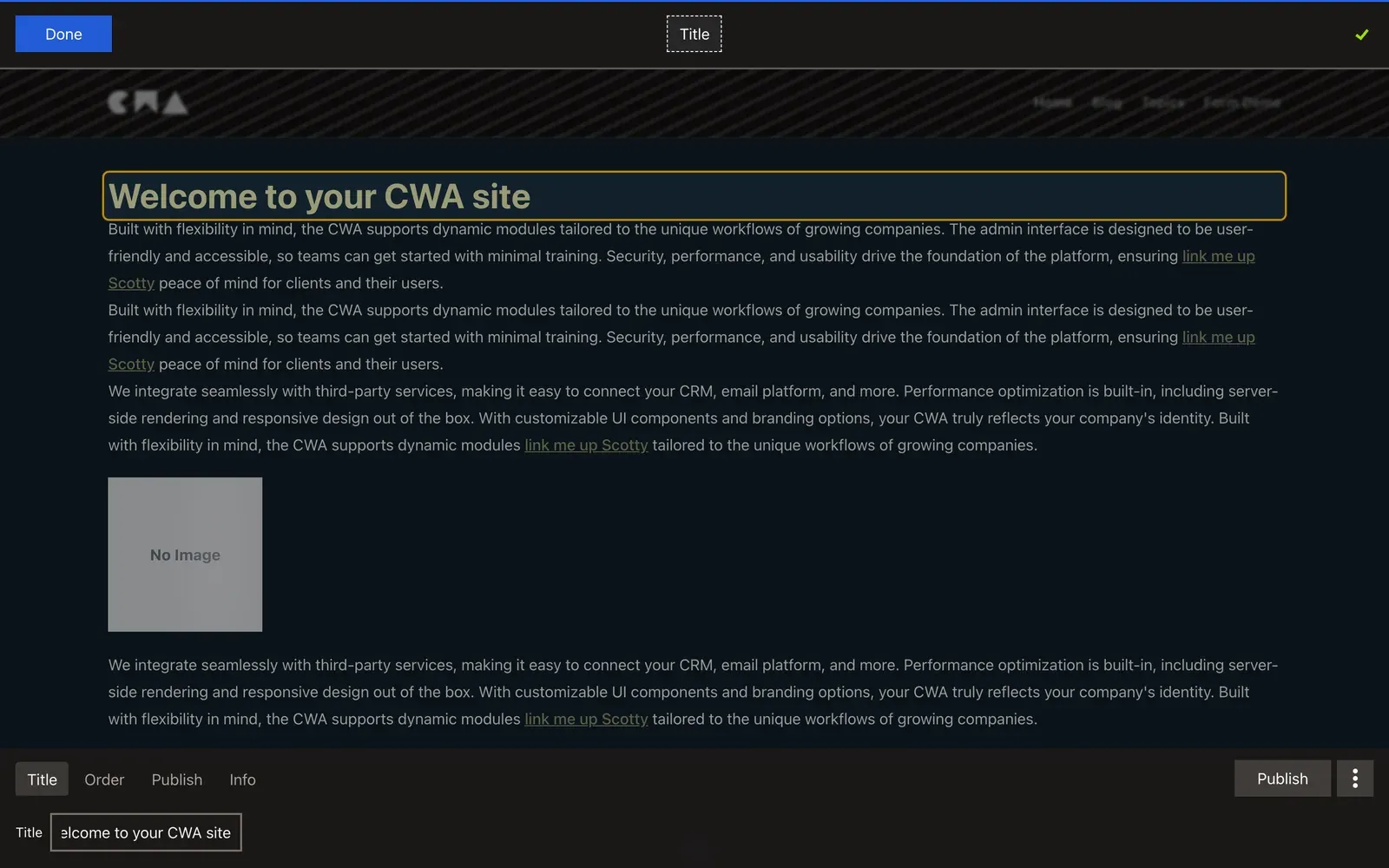
When you click a component, the manager panel shows all admin/*.vue files for that component type as tabs. Each tab is defined by a call to useCwaResourceManagerTab({ name: 'Tab Name' }) in the Vue file.
Changes in the admin tabs apply to the draft version of the component. Click Publish in the panel to make changes live.
Scheduling a Publish
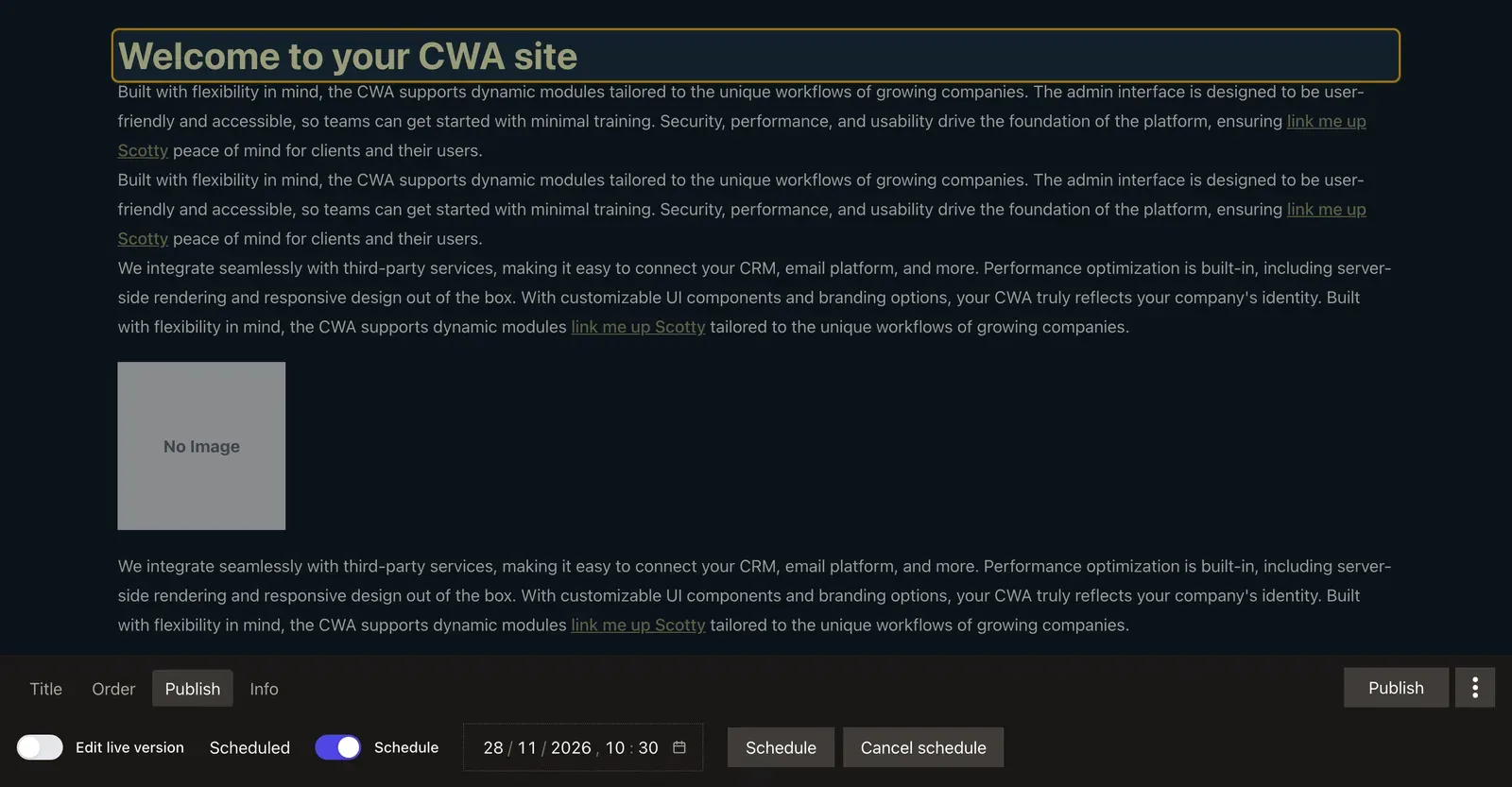
A component with a draft can be published now or at a later time. Select it and open the manager panel's Publish tab. It says whether the component is Draft, Scheduled or Live, and for a draft it has a Schedule toggle:
- Schedule off: click Publish now to publish the draft straight away.
- Schedule on: pick a date and time, then click Schedule. The state changes to Scheduled. Type into the day, month, year, hour and minute, or use the calendar button. Minutes go in steps of 5, and times before you opened the tab can't be chosen.
A scheduled draft opens with the toggle on. To keep it unpublished, click Cancel schedule, which clears the date.
Publishing straight away uses the API server's clock, not your computer's. Publish, Publish now, a Schedule whose time has already passed, and adding a component that is published straight away all send "publishedAt": "now", and the API sets the time when it saves. So a publish works even when your computer's clock is ahead of the server's. A future schedule sends the date and time you picked.
Visitors see the new version from the scheduled time: the API holds the draft back until then and caps cached responses at that time, see Scheduled Publication and Cache Lifetime. Nothing is pushed to open browsers at that moment, so a page that is already open shows the change the next time it loads.
Deleting a component
Deleting is on the panel's Info tab. The button names what it deletes:
- Delete Draft when the selected component is a draft.
- Delete Live when it is the live version of a publishable component.
- Delete for anything that isn't publishable, such as a component group or position.
- Discard while a new component is still being added.
A delete removes only the selected version, never the draft and the live version together. To delete the other one, select it first: the Publish tab's Edit live version toggle switches between them.
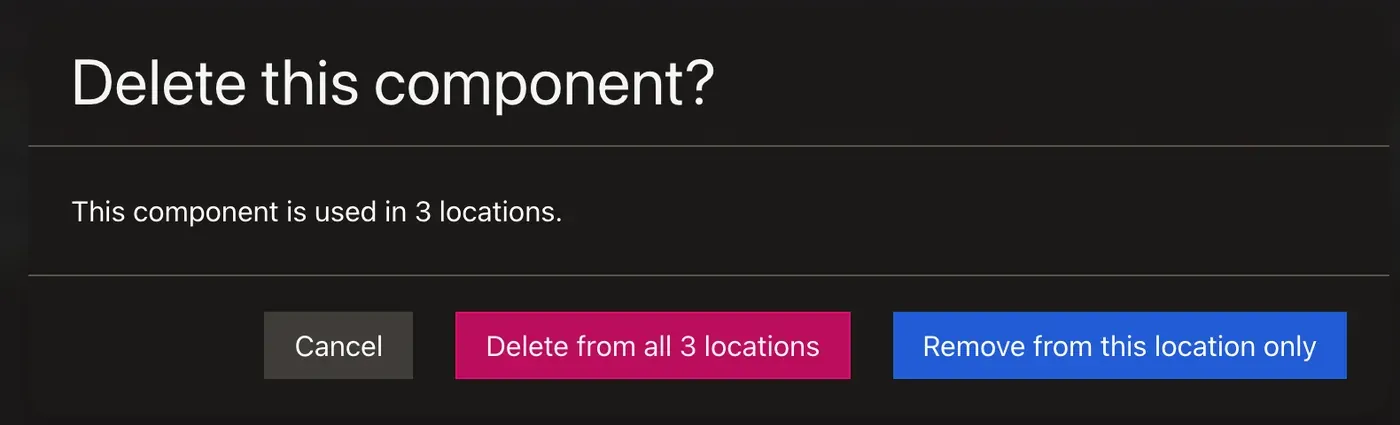
A component used in more than one place (see Shared Components) shows Used in N locations on the Info tab. The count includes component positions and page data fields that hold it. Deleting it asks Delete this component? with three choices:
- Remove from this location only, the first button and the one with the focus, keeps the component and removes it from the place you selected it in: it deletes that component position, or for a component position bound to a page data property it clears that property.
- Delete from all N locations, styled as a danger, deletes the component, so it disappears everywhere.
- Cancel. Pressing Escape or closing the dialog counts as Cancel.
The question is asked only when you selected the component inside a component position. Otherwise the delete removes the component, as it does for a component in one place.
Managing Routes
The /_cwa/routes admin page manages URL paths for pages and redirects.
Editing a path
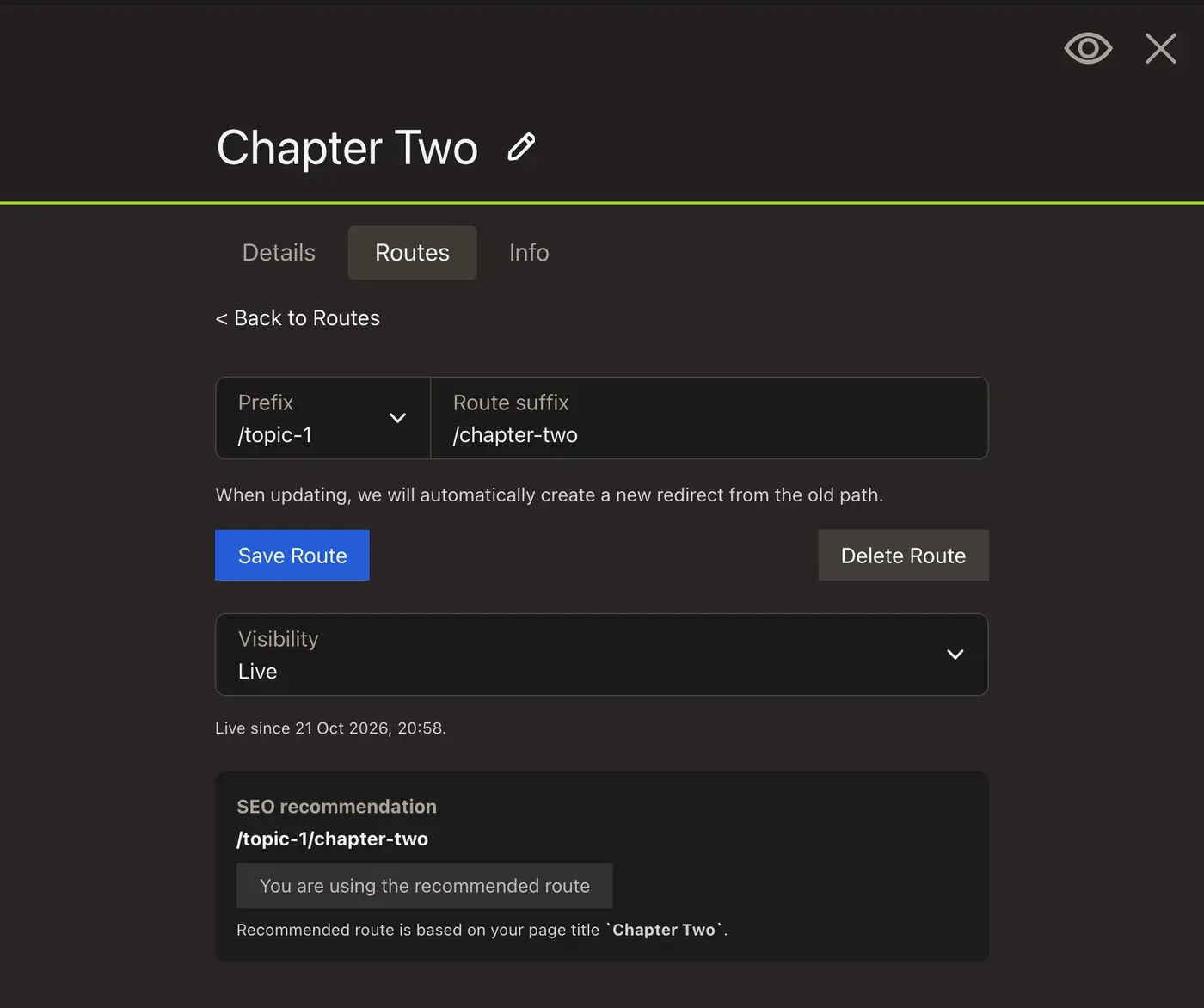
The path editor uses a prefix + suffix layout. For top-level routes the prefix is / (root) and you type the full slug. For child routes (e.g. a blog article nested under /blog) the Prefix select also offers the parent path — pick it and you only type the suffix. This makes it clear what the final URL will be without having to remember the parent path.
An SEO recommendation appears below the input showing a full path preview built from the parent prefix and a slugified version of the page title. Click it to apply.
When you save a changed path, a dialog asks Update child routes? Confirming it renames all child paths to keep them under the new parent prefix and creates redirects from every old path automatically. Without it only the parent route is renamed (with a redirect from its old path); children keep their old paths.
Visibility
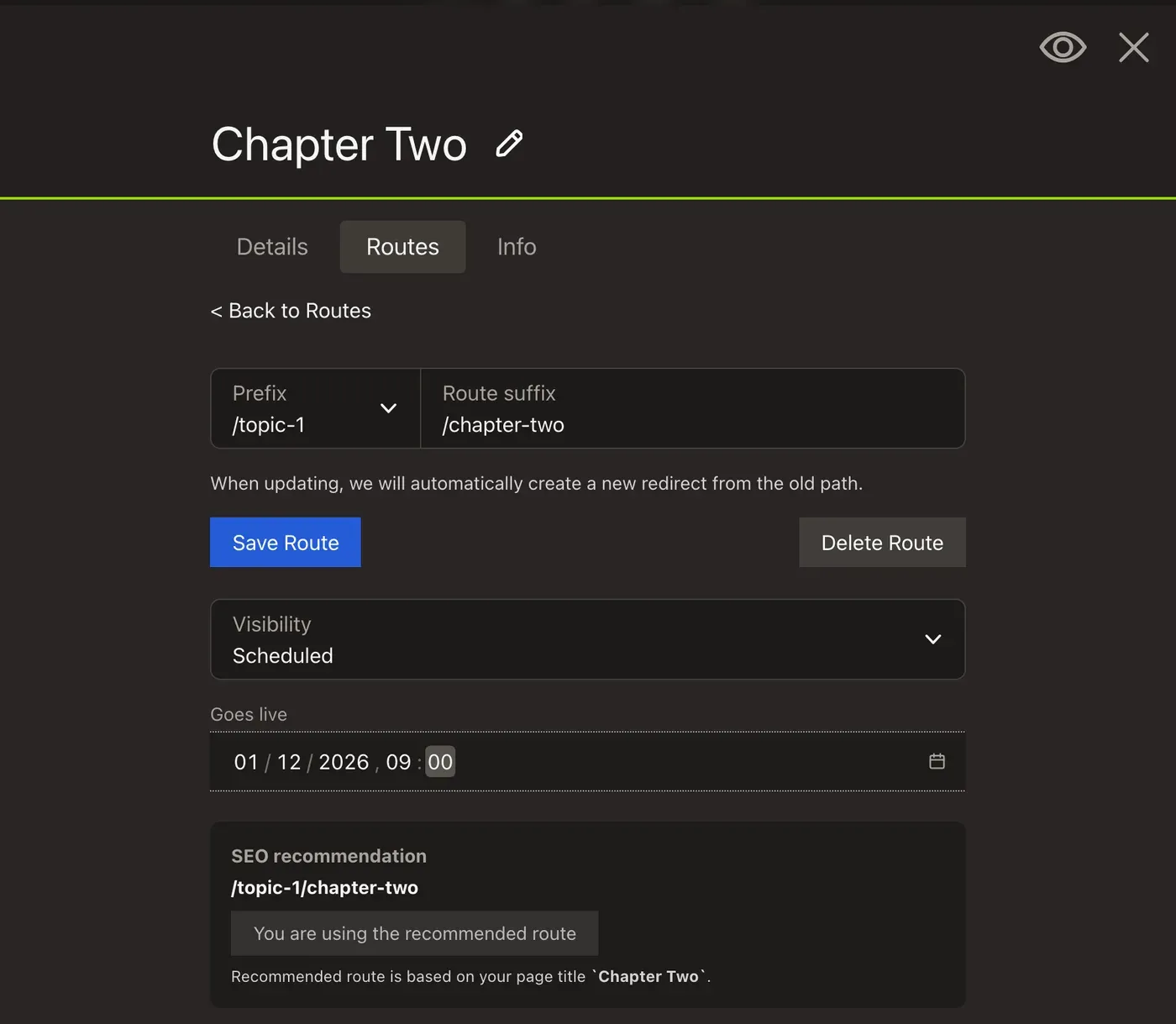
The route editor (a page's Routes tab, also reached from /_cwa/routes) has a Visibility setting that decides whether the public can see the page:
- Live — public now
- Scheduled — public from the date and time you pick in the Goes live field. Times are in your computer's time zone: hover the calendar button to see the zone and its offset at that date, for example "Times are in Europe/London, UTC+01:00"
- Not live — hidden, with the path still reserved. Use it to take a page offline without deleting its route
The change is saved with Save Route.
Choosing Live on a route that is already live keeps its go-live date, which is shown beside the control. Only a route that was scheduled or not live gets the current time.
Visibility is inherited: a page can't go live before its parent route does, so if the parent is scheduled or not live, the route editor tells you what is holding the page back. The routes list and each route's summary show the state that actually applies, with the go-live date for scheduled routes.
As an editor you can still open, preview and edit a scheduled or hidden page. Visitors get a 404, and it stays out of the sitemap until it goes live. For the full rules see Scheduling and Taking Routes Offline.
A page or page data with no route is private, unless you turn on Public without a route in its settings. Use it for a page that your app loads by IRI from a route of its own (see Module Setup › Load a CWA Page by IRI). The toggle does nothing while the page has a route, and a flagged page still needs any routed parent to be live. A flagged page is shown green, as public, like a routed one. See Public Pages Without a Route.
Redirects
Each route entry shows two sections:
Forward visitors to — the outbound redirect field. Set this to send visitors arriving at this URL to a different destination. When a redirect target is set and edit mode is active, the admin panel suppresses the redirect so the page remains navigable for editing.
Incoming redirects — the redirectedFrom list. Shows all other routes that currently forward visitors to this route. Useful for auditing redirect chains and identifying stale paths.
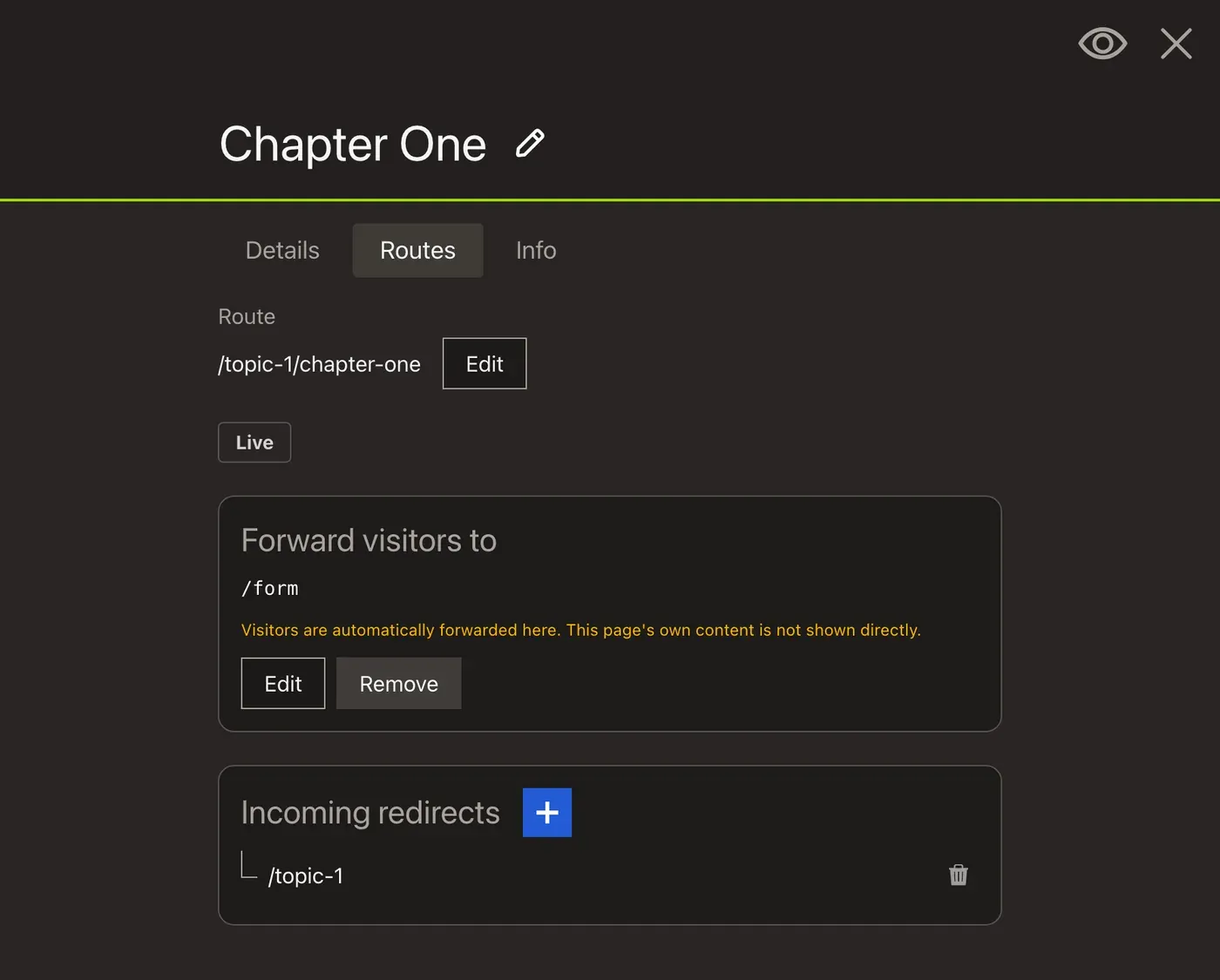
Redirects can be chained. The API walks the chain when it serialises a route and returns the final destination as redirectPath — the Nuxt module's route middleware then issues a 308 to it. A chain that loops back on itself is rejected with a circular reference error rather than being followed.
To seed redirects in fixtures, see Builder Reference › Seeding Redirects.
Editing Together
Two admins can edit the same page at the same time. Each one's saves appear on the other's screen as soon as the API has them, in the page and in the manager panel, with no reload.
You can see each other as you work. The admin bar shows an avatar for each other admin on the page, in their colour, and how many are on other pages; click the avatars to see where each one is and what they're doing. In edit mode, a component another admin has selected is outlined in their colour with their name, and so is a field they're typing in.
If the other admin saves a field you've changed but not saved, your value stays and the control shows Ana Ruiz changed this · Use theirs / Keep mine. Use theirs drops your change; Keep mine saves yours over theirs. Publishing chooses Keep mine for you.
If the other admin deletes the component you have selected, it's deselected. If they publish the draft you're editing, your unsaved changes are saved to a new draft.
Co-editing needs api-components-bundle 2.0.0-alpha.36 or later. The details, what it needs from the API's CORS config and how to turn it off are in Real-Time Updates › Co-Editing in the Admin.
The Admin Pages (/_cwa/)
The admin bar's menu opens the admin pages under /_cwa: Layouts, Pages, Data (your page data records, such as blog articles), Routes, Users and Settings. They're separate screens for managing records, while content is still edited on the page itself. Admin Panel Reference › Admin Routes lists every route.
Maintenance
Two admin tools clean up what content and code changes leave behind. Both are covered in full in Maintenance.
Stranded Component Groups
If you rename a group's reference in code, the old group stays attached to the page with its content, and visitors stop seeing it. The admin bar then shows a warning icon with a count beside Edit / Done. Click it to merge each stranded group into one the page shows, or delete it. See Stranded Component Groups for what the check finds and the cases that switch it off.
Orphaned Resources
Removing content can leave records nothing uses: a component nothing displays, an empty position, a group nothing owns, or an uploaded file. Site settings (/_cwa/settings) can scan for them, and /_cwa/orphaned lists them so you can review and delete them. See Orphaned Resources and Orphaned files.
Next: Caching
Caching shows every cache between a visitor and the API, and how an editor's save clears them.
Draft & Publish Workflow
How editors change draft versions of components without touching the live site, then publish when ready.
Caching
Every cache between a visitor and the API in a CWA site, from the service worker to Cloudflare, Souin and the API's cache tags. What each one stores, how long, and what clears it.