

Your First Component
Components are the content editors place in your component groups. Each component type is a PHP entity that holds its data, a Vue file that displays it, and an admin tab to edit it. The template's Title (api/src/Entity/Title.php and app/app/cwa/components/Title/) is a complete example. This guide builds a Quote component beside it and adds one to your /landing page.
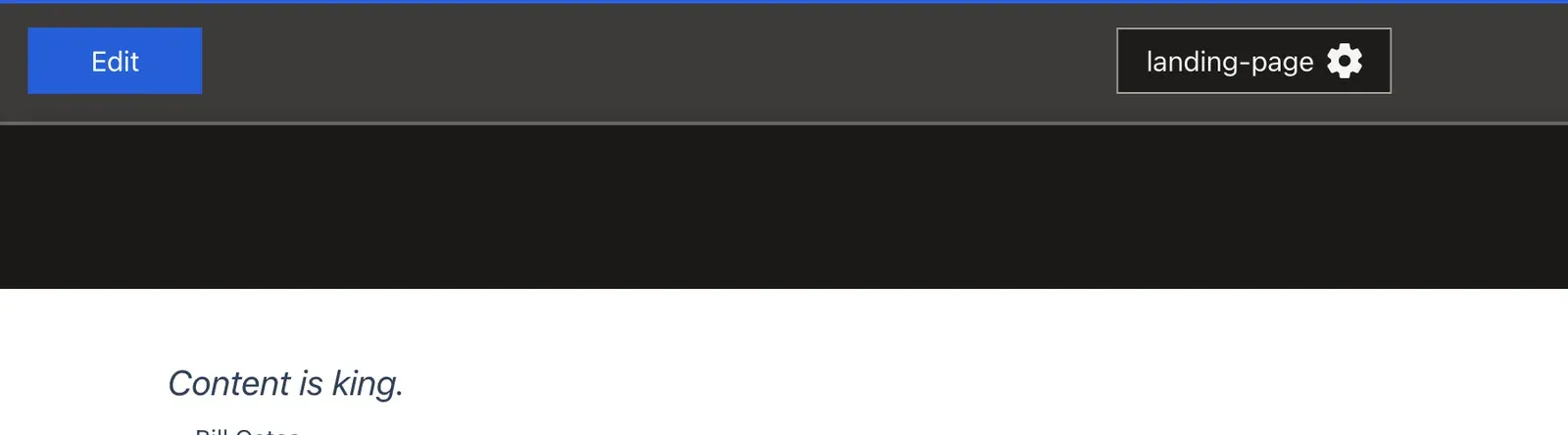
The Files
A component type has three files: a Vue file that displays it, a PHP entity that holds its data, and an admin tab that edits it.
The Vue file
The generator writes its file relative to the current directory, so run it in app/, the Nuxt project:
cd app
npx cwa make:component
Answer Quote for the name, Basic for the type, and yes to publishable. It writes app/cwa/components/Quote/Quote.vue inside app/ — that's app/app/cwa/components/Quote/Quote.vue from the project root — and prints the command that creates the API entity.
app/cwa/components/, which Nuxt never reads. Move the folder into app/app/cwa/components/ if that happens.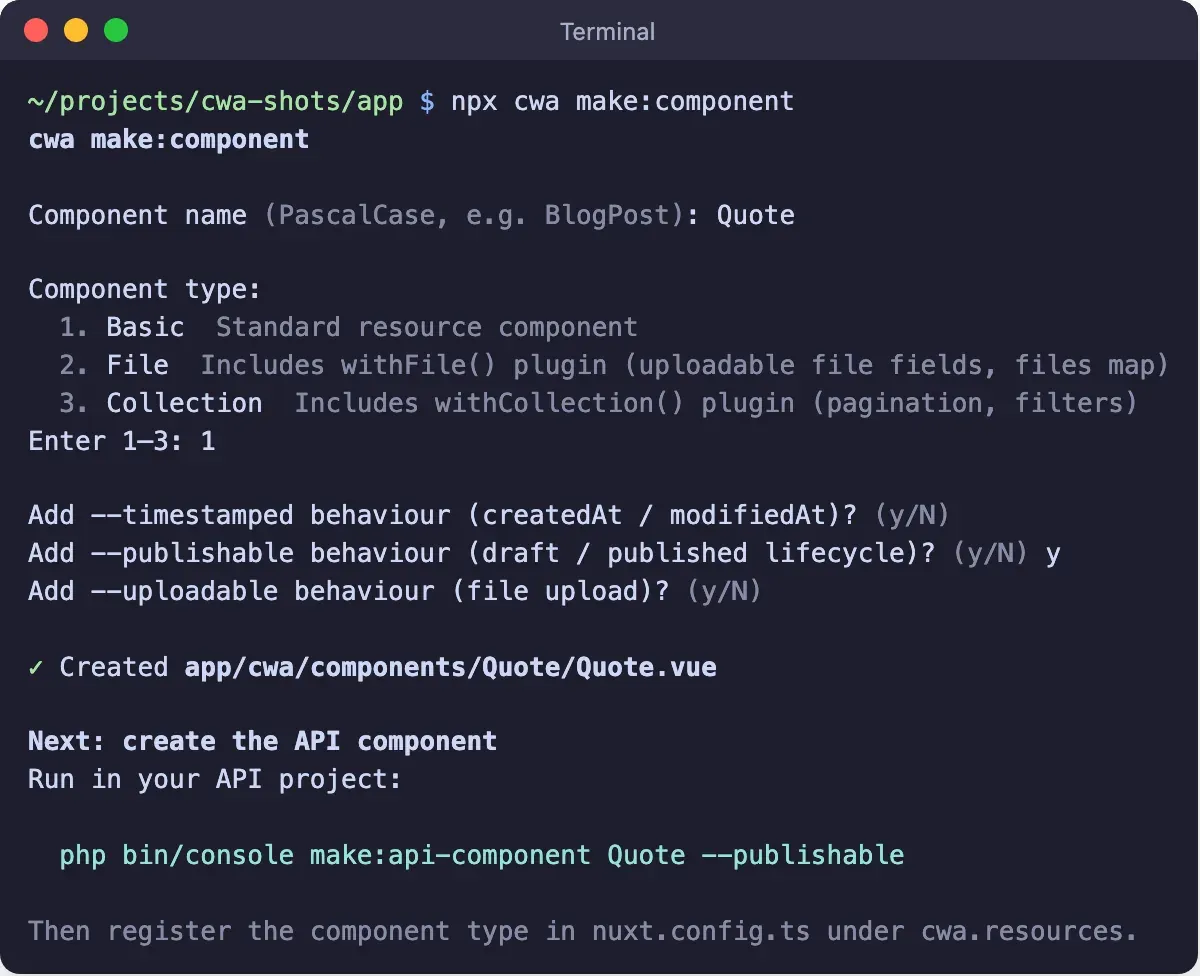
Open the generated file and fill in the template:
<template>
  <figure class="my-6 border-l-4 border-stone-400 pl-4">
    <blockquote class="text-xl italic">
      {{ resource?.data?.text || 'No quote yet' }}
    </blockquote>
    <figcaption
      v-if="resource?.data?.author"
      class="mt-2 text-sm"
    >
      — {{ resource.data.author }}
    </figcaption>
  </figure>
</template>

<script setup lang="ts">
import type { IriProp } from '#cwa/composables/cwa-resource'

const props = defineProps<IriProp>()
const { resource, exposeMeta } = useCwaComponent(props)
defineExpose(exposeMeta)
</script>
See cwa make:component for the full reference and the file/collection variants.
The API entity
The CLI prints the host form, php bin/console make:api-component Quote --publishable. PHP only runs in Docker, so run it through the php container from the project root:
docker compose exec php bin/console make:api-component Quote --publishable
That creates api/src/Entity/Component/Quote.php with no fields. Add the two the Vue file reads, and mercure: true so open pages receive edits live:
<?php

namespace App\Entity\Component;

use ApiPlatform\Metadata\ApiResource;
use Doctrine\ORM\Mapping as ORM;
use Silverback\ApiComponentsBundle\Annotation as Silverback;
use Silverback\ApiComponentsBundle\Entity\Core\AbstractComponent;
use Silverback\ApiComponentsBundle\Entity\Utility\PublishableTrait;
use Symfony\Component\Validator\Constraints as Assert;
#[Silverback\Publishable]
#[ApiResource(mercure: true)] #[ORM\Entity]
class Quote extends AbstractComponent
{
    use PublishableTrait;

    #[Assert\NotBlank(groups: ['Quote:published'])]     #[ORM\Column(type: 'text', nullable: true)]     public ?string $text = null;
    #[Assert\Length(max: 255)]     #[ORM\Column(nullable: true)]     public ?string $author = null;}
The Quote:published group means a draft can be empty, but it can't be published without text. author is a short string column, which holds up to 255 characters, so Length turns a longer name into a validation error instead of a database error. text has no such limit. Then generate and run the migration:
docker compose exec php bin/console doctrine:migrations:diff
docker compose exec php bin/console doctrine:migrations:migrate
The migration lands in api/migrations/. Review it, and delete its down(): the template's migrations are upward-only (see Bundle Setup › Database Setup). See make:api-component for all available flags.
The admin tab
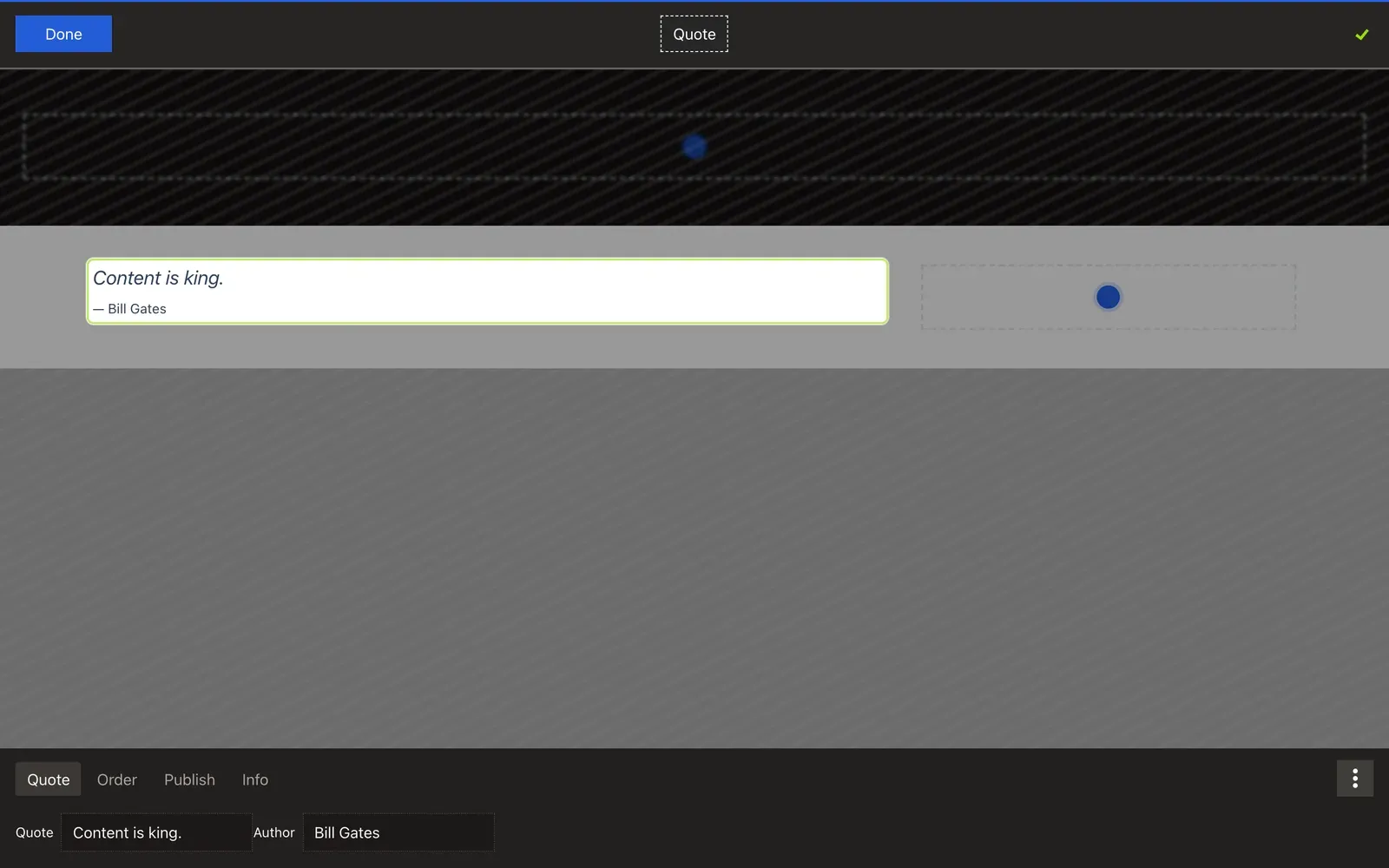
Create app/app/cwa/components/Quote/admin/Quote.vue — the editing form shown in the inline CMS:
<template>
  <CwaUiFormLabelWrapper label="Quote">
    <CwaUiFormInput :model="textModel" />
  </CwaUiFormLabelWrapper>
  <CwaUiFormLabelWrapper label="Author">
    <CwaUiFormInput :model="authorModel" />
  </CwaUiFormLabelWrapper>
</template>

<script setup lang="ts">
import { useCwaResourceManagerTab, useCwaResourceModel } from '#imports'

const { exposeMeta, iri } = useCwaResourceManagerTab({ name: 'Quote' })
const textModel = useCwaResourceModel<string>(iri, 'text')
const authorModel = useCwaResourceModel<string>(iri, 'author')

defineExpose(exposeMeta)
</script>
Register in nuxt.config
Add an entry next to the template's Title:
// app/nuxt.config.ts
cwa: {
  resources: {
    Title: {
      // the template's existing entry
    },
    Quote: {      name: 'Quote',      description: '<p>A pull quote with an optional author.</p>',    },  }
}
The module already finds the Vue files by where they are. This entry only sets the name and description the Add Component dialog shows. Without it, the dialog names the component from its directory, Quote, and says "No Description".
Add a Quote to the Page
Via the admin
Open https://localhost/landing, sign in and click Edit. Click + in the main group, choose Quote, and type in the tab. Changes save automatically. Click Publish to make it live.
/landing — entering edit mode, adding a Quote from the Add Component dialog, typing in the admin tab and watching the quote update live, then clicking PublishVia fixtures
In api/src/DataFixtures/Parts/LandingScaffoldPart.php, create a published Quote and add it to the page's main group:
use App\Entity\Component\Quote;
// ...

public function build(CwaFixtureBuilder $cwa, ScaffoldState $state): void
{
    $cwa->layout('landing', 'Landing');

    $quote = new Quote();    $quote->text = 'Content is king.';    $quote->author = 'Bill Gates';    $cwa->publish($quote);
    $cwa->page('landing-page', 'TwoColumnPageTemplate', layout: 'landing', route: '/landing')
        ->title('Landing')
        ->group('main')->add($quote);}
The group name matches the reference in TwoColumnPageTemplate.vue. $cwa->publish() publishes the Quote when the fixtures load. Load it from the project root:
docker compose exec php bin/console doctrine:fixtures:load --append
--append never adds to a group that already exists. The module creates a page's groups the first time a signed-in admin opens it, so if you've visited /landing signed in, or added a component there in the admin, the main group exists and the quote isn't added. Add it in the admin instead, or reload from empty with doctrine:fixtures:load (no --append). That deletes everything, editors' changes included, before the template's fixtures seed the site and the admin account again.Next: Style Variants
Give the Quote more than one look in Alternative UI Variants. Other places to go from here:
- Add an image → Images & Media
- Multiple admin tabs → create additional files in
admin/, each withuseCwaResourceManagerTab({ name: '...', order: N }) - Full composable reference → useCwaComponent